/handbook/aem-to-wordpress-migration/post-migration/
What We Do
Digital Platform MigrationsKey SolutionsManaged ServicesStaffing SolutionsIndustriesProducts


Discovery
Strategic consultancy & project roadmap

Growth Services
On demand development & consultation

Site Maintenance
Annual maintenance. Done for you

QE Services
Testing across SDLC for assured quality

Hosting Migration
Move to a performant hosting with zero downtime

WooCommerce
Enterprise commerce delivered without lock-in

AI
Unlock real use cases and integrations

All Services
A suite of services for any need
Technology STACK


eCommerce
Scale your e-commerce with WooCommerce, integrations, and custom extensions for growth.


EasyEngine
Server management tool that makes using WordPress on Nginx easy.

Web Auditor
Performance Audit & Insights for your Website.

rtMedia
A complete media management plugin for WordPress.
Resources


About Us



CLEAR
 Resources AEM to WordPress migration guide Post-migration essentials
Topics
On this page
Verification
1. Functionality check
2. Performance QA
3. Content validation
Optimization
Performance tuning
Feature enhancement
User feedback implementation
Maintenance
Last updated on May 25, 2026
AEM to WordPress: Post-migration essentials
After you’ve migrated from AEM to WordPress, the focus shifts to QA. This phase involves thorough testing, identifying and fixing any issues, and ensuring that everything works as expected.
Verification
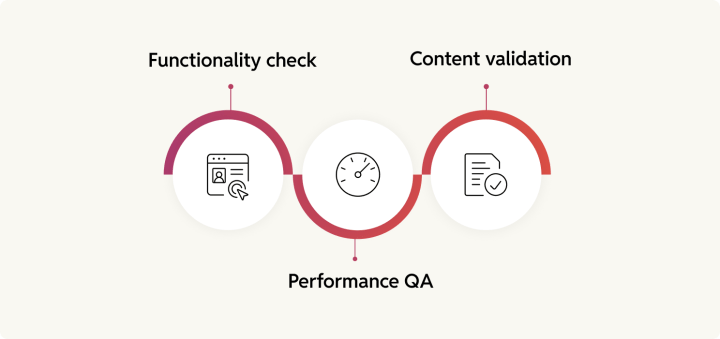
What we’re calling verification here is more like post-migration QA—essentially ensuring that everything on the frontend, backend, and content fronts works as intended.
1. Functionality check
Functionality check is ensuring that every feature/functionality, third-party integration, and user-facing component (like content) behave as intended. For e.g.: Can users submit forms? Do interactive elements like sliders and accordions work smoothly? Are plugins behaving as intended? Are the workflows triggering (and executing) correctly? etc.
Things to do
- Test all custom features to ensure they work as expected (e.g., forms, pop-ups, custom widgets, and any bespoke functionality unique to your AEM instance).
- Verify third-party integrations (like CRMs, marketing automation tools, analytics, and payment gateways) to ensure connections are stable and all data flows correctly.
- Confirm workflows work end-to-end (like content approvals, publishing, and review cycles) to avoid bottlenecks post-launch.
- Check design and responsiveness of interactive elements, including buttons, sliders, accordions, modals, and dropdowns, across all target devices.
- Ensure role-based permissions are correctly assigned for admins, editors, and users. Check if roles are triggering the right permissions and no unauthorized access is allowed.
- Test plugin functionality to catch compatibility issues or errors. This includes testing both pre-built plugins and any custom-built ones.
- Validate search functionality to confirm site search results are accurate, filtering works as intended, and indexing is complete.
- Test error handling and fallback states (e.g., what happens if an integration fails or if users enter incorrect form data).
- Check multilingual support (if applicable) to ensure correct language switching, translations, and fallback language behavior.
- Run user acceptance testing (UAT) to gather feedback from stakeholders and end users on whether the site functions as they expect.
- Check scheduled jobs and cron tasks (like automated content publishing or syncs) to ensure they trigger and complete as intended.
- Review accessibility and compliance adherence.
2. Performance QA
With performance QA, you’re mostly checking your new WordPress site for speed.
Things to do
- Run page speed tests using tools like Google PageSpeed Insights, GTmetrix, or Lighthouse. Compare results with pre-migration AEM benchmarks and track key performance indicators (KPIs) like LCP (Largest Contentful Paint) and TTI (Time to Interactive).
- Check server response times and reduce Time to First Byte (TTFB) by optimizing your hosting environment. Consider built-in caching and CDN support.
- Verify object caching, page caching, and CDN caching to ensure faster page loads.
- Check for render-blocking resources (like large or unnecessary CSS and JavaScript files) and reduce or defer them.
- Optimize images by compressing them and converting to next-gen formats like WebP or AVIF. Use plugins like ShortPixel, Imagify, or Smush to automate the process.
- Enable lazy loading for images, videos, and iframes to ensure media assets only load when users scroll down to view them.
- Minify and combine CSS/JS files to reduce file sizes and HTTP requests. Use plugins like Autoptimize or manual Gulp/Grunt workflows.
- Preload key assets (like fonts, hero images, and key scripts) to improve load times for the most critical page elements.
- Enable Gzip or Brotli compression to reduce file sizes sent from the server to the browser.
- Check for third-party script performance from tools like chatbots, analytics, or ad trackers. Remove or defer scripts that slow down load times.
- Audit database queries to detect slow or unnecessary queries using tools like Query Monitor. Optimize slow queries and remove unused transients.
- Test critical CSS to ensure key visual elements load instantly, improving perceived load times. Use tools like Critical CSS or manually extract above-the-fold styles.
- Run load testing and stress testing using tools like Loader.io or k6 to simulate high traffic and identify potential bottlenecks.
- Check for performance plugins that may conflict or duplicate efforts (e.g., multiple caching or lazy loading plugins) to avoid redundancy and conflicts.
- Review the font-loading strategy to ensure only essential fonts are preloaded or self-hosted, reducing third-party font requests.
3. Content validation
Content validation is ensuring that all content assets, media files, and metacontent are migrated cleanly. For content validation, first ensure that every piece of content that you intended to migrate has actually migrated. Also check for formatting issues, broken links, and missing media. You’ll need to verify that SEO elements—like meta titles, descriptions, and schema markup—are in place too.
Things to do
- Cross-check migrated pages against the original AEM site to confirm content completeness and accuracy. Use automated solutions like Screaming Frog where possible.
- Verify images, videos, and media files to ensure they are present, correctly displayed, and optimized for speed and responsiveness. Check for broken images, missing alt text, and issues with file format compatibility.
- Run broken link checks to ensure internal and external links remain intact and that content is available/accessible. Again, you can use a tool like Screaming Frog to scan for issues.
- Review SEO elements to confirm that meta titles, descriptions, H1/H2 tags, and schema markup are present and formatted correctly.
- Check for layout and design issues such as incorrect text alignment, padding, margins, and font consistency on all screen sizes (mobile, tablet, and desktop). Use cross-browser testing tools like BrowserStack for a complete view.
- Ensure interactive elements like buttons, CTAs, and pop-ups are functional and displayed correctly. This includes animations, hover states, and form actions, among other things.
- Audit embedded media (like iframes, videos, or third-party widgets) to ensure they load properly and don’t introduce performance bottlenecks.
- Validate downloadable files (like PDFs, docs, or whitepapers) to ensure they’ve been migrated correctly, links are intact, and downloads work as expected.
- Check for character encoding issues (like weird symbols or characters) that can occur when migrating content between different CMSs.
- Validate multilingual content to ensure language-specific pages, hreflang tags, and translations are intact if applicable.
- Audit dynamic content and personalized content to ensure any content that changes based on user location, behavior, or session data is working as intended.
- Check content scheduling and publishing workflows to ensure any scheduled content has maintained its status (published, draft, etc.) post-migration.
- Look for content duplication issues to ensure pages, posts, or media files aren’t duplicated during migration, which can negatively impact SEO.
- Check page slugs, URLs, and permalinks to ensure they are consistent with the original AEM setup, especially if SEO-friendly URLs were used.
- Verify redirects for any URLs that changed during migration to avoid broken links and 404 errors. Use .htaccess or a redirect plugin like Redirection to manage these.
- Check page templates and content structure to ensure consistency in layout, such as headers, footers, and sections. Confirm any page builder elements (like blocks) are working as intended.
- Review accessibility (WCAG) compliance to ensure alternative text for images, ARIA labels, and keyboard navigability have been maintained.
- Spot-check key landing pages to ensure high-traffic, high-conversion pages are pixel-perfect and free from issues. These pages often have a higher business impact.
- Confirm internal search functionality to ensure WordPress’s native search (or any custom search) is indexing and displaying accurate results.
- Test inline content editing features to make sure editors and admins can easily update text, images, and layout components within the WordPress admin.
- Check all user-facing error messages and alerts to ensure custom 404 pages, validation error messages, and “no results found” pages are migrated correctly.
Once you’ve worked through this post-migration QA, you can move to (ongoing) optimizations.
Optimization
Don’t just “lift and shift” from AEM to WordPress. Use this migration as an opportunity to reduce technical debt, improve performance, and build a better content experience for all stakeholders.

Performance tuning
Here are a few ways to secure performance gains after migrating:
- Speed optimization: Identify areas for improvement through minification of CSS, JS, and HTML; CDN integration; and file compression, among other things.
- Cache configuration: Caching can secure serious performance gains. Consider page, object, and edge caching with a CDN.
- Image optimization: Consider image compression, WebP conversion, and responsive images to reduce page weight and boost loading speed.
- Code refinement: Consider refactoring and streamlining your code. Clean code makes your site easier to maintain, debug, and extend.
Feature enhancement
Identify opportunities to further enhance your website experience for all stakeholders. For users, for example, this might mean introducing newer and more immersive storytelling formats. WordPress’s flexibility makes it easier to experiment and adapt quickly.
User feedback implementation
Once your WordPress website is up and running, use analytics and heatmaps to understand how your user engagement has changed with the migration.
Also, tap surveys to collect user feedback on your new website experience.
Unlike AEM, which comes with extensive development cycles, WordPress allows you to iterate faster. This means you can quickly incorporate any insights you learn to further refine your website user experience.
Before we wrap up this handbook, let’s see why implementing a solid maintenance strategy is also a key part of the AEM to WordPress migration process.
Maintenance
Ongoing maintenance is a crucial component of the migration process, as it ensures that your WordPress site stays aligned with your evolving business needs—the very reason you migrated from AEM in the first place.
Regular WordPress maintenance involves several ongoing tasks to ensure your site remains secure, functional, and optimized. One of the most critical aspects is keeping your WordPress core, plugins, and themes up to date.
Regular security scans are also vital, as they help detect vulnerabilities, malware, or suspicious activity, keeping your site safe from threats. Equally important is backup management—performing routine backups of your files, theme, plugins, and databases ensure that your data is safe and can be restored quickly in case of any issues.
Performance monitoring is another crucial task, as it involves checking your site’s load times, server health, and speed to spot any potential issues before they impact user experience. Depending on your WordPress stack, you’ll need to determine whether to handle maintenance in-house, outsource it to a specialized team, or opt for a managed service plan.
Credits

Disha Sharma
Author
Disha Sharma
Author
Disha Sharma is a Content Writer at rtCamp with over a decade of experience at the intersection of technology, digital marketing, and enterprise content strategy. Her WordPress roots run deep, her …

Shreya Agarwal
Author
Shreya Agarwal
Author
Shreya Agarwal is a Growth Engineer at rtCamp, she brings active, hands-on WordPress development credentials to everything she writes and reviews. A WordPress Core Contributor with merged pull requ…

Good Work. Good People.
Industry partnerships


Compliance certifications


 United States India
© rtCamp Inc. since 2009. All rights reserved.
Terms of Service · Privacy Policy · Trust Center
Company
Solutions
Subscribe to our newsletter and get a few email updates every month.
United States India
© rtCamp Inc. since 2009. All rights reserved.
Terms of Service · Privacy Policy · Trust Center
Cookie Consent
We value your privacy
We use cookies to give you the best possible experience. By clicking “Accept,” you consent to our use of cookies to improve site functionality, analyze usage, and personalize content and communications. Your privacy matters to us, and we are committed to handling your data responsibly and transparently. Please check our Privacy Policy for more details.
Manage PreferencesDon’t AllowAllow All
Why do we use cookies?
×
By clicking "Accept" or "Decline All" at the bottom, you consent to the use of cookies and other tools as described in our Cookie Policy in accordance with your settings and accept our Terms of Service.
Toggle EssentialEssential
Essential cookies enable basic functions and are necessary for the proper function of the website.
Name
Description
Duration
Geolocation Config
This cookie is used to store the consent settings based on the visitor's location.
30 days
Cookie Preferences
This cookie is used to store the user's cookie consent preferences.
30 days
Toggle CloudFlareCloudFlare
CloudFlare provides web performance and security solutions, enhancing site speed and protecting against threats.
Service URL: developers.cloudflare.com (opens in a new window)
Name
Description
Duration
cf_clearance
Whether a CAPTCHA or Javascript challenge has been solved.
session
Toggle CommentsComments
These cookies are needed for adding comments on this website.
Name
Description
Duration
comment_author
Used to track the user across multiple sessions.
Session
comment_author_email
Used to track the user across multiple sessions.
Session
comment_author_url
Used to track the user across multiple sessions.
Session
Toggle GodamGodam
GoDAM" is primarily a specialized WordPress plugin and media management service designed to enhance video hosting, marketing, and asset management directly within the WordPress dashboard.
Service URL: godam.io (opens in a new window)
Name
Description
Duration
user_image
Temporarily stores the path to the user's avatar or profile picture for quick rendering in the website header.
session
user_id
Stores the numerical ID of the logged-in user to maintain session continuity and basic site operations.
session
full_name
Stores the logged-in user's display name to personalize the site interface without needing database queries.
session
system_user
First-party cookie used to store basic application state identifying the current system user role.
session
sid
A generic session ID cookie used to maintain user state and functionality as the visitor navigates through the site.
session
Toggle Google reCAPTCHAGoogle reCAPTCHA
Google reCAPTCHA helps protect websites from spam and abuse by verifying user interactions through challenges.
Name
Description
Duration
_GRECAPTCHA
Google reCAPTCHA sets a necessary cookie (_GRECAPTCHA) when executed for the purpose of providing its risk analysis.
179 days
Toggle Google Tag ManagerGoogle Tag Manager
Google Tag Manager simplifies the management of marketing tags on your website without code changes.
Name
Description
Duration
cookiePreferences
Registers cookie preferences of a user
2 years
td
Registers statistical data on users' behaviour on the website. Used for internal analytics by the website operator.
session
Toggle StatisticsStatistics
Statistics cookies collect information anonymously. This information helps us understand how visitors use our website.
Toggle Factors AIFactors AI
Factors.ai is a B2B account intelligence and marketing analytics platform that helps Go-To-Market (GTM) teams identify anonymous website visitors, track buyer journeys, and measure the ROI of marketing campaigns.
Service URL: www.factors.ai (opens in a new window)
Name
Description
Duration
_fuid
It is sent to capture session details and track user behavior across your website to provide behavioral data and intent signals.
1 Year
Toggle Google AnalyticsGoogle Analytics
Google Analytics is a powerful tool that tracks and analyzes website traffic for informed marketing decisions.
Service URL: policies.google.com (opens in a new window)
Name
Description
Duration
FPGSID
Stores a session or user identifier to track how visitors interact with a website. This helps Google Analytics measure website performance, user engagement, and usage patterns.
Session
FPLC
Used by Google Analytics to link visitor interactions and sessions across multiple related domains.
20 hours
FPID
A server-side Google Analytics cookie used as an alternative user identifier when third-party cookies are restricted.
2 years
_ga
ID used to identify users
2 years
_ga_
ID used to identify users
2 years
Toggle Jetpack StatsJetpack Stats
Jetpack's built-in visitor analytics. It records page views, referring sites, search terms, and outbound link clicks, and also carries the shared visitor-tracking library used by Jetpack Instant Search and WooCommerce Analytics.
Service URL: automattic.com (opens in a new window)
Name
Description
Duration
tk_aip
Stores a list of anonymous visitor IDs so they can be merged into one identity once a visitor is recognized.
Up to 5 years
tk_tc
Used once per page load to work out which cookie domain the Tracks library should use, then removed as soon as it's read back.
Session (deleted immediately after use)
tk_qs
Queues analytics events for Jetpack's Tracks library so none are lost if the page closes before they can be sent.
30 minutes
tk_ai
Stores a randomly-generated anonymous visitor ID so Jetpack's Tracks analytics library can link tracking events to the same visitor.
Session in wp-admin; up to 5 years on the frontend
Toggle Microsoft ClarityMicrosoft Clarity
Clarity is a web analytics service that tracks and reports website traffic.
Service URL: clarity.microsoft.com (opens in a new window)
Name
Description
Duration
CLID
Identifies the first-time Clarity saw this user on any site using Clarity.
12 months
ANONCHK
Indicates whether MUID is transferred to ANID, a cookie used for advertising. Clarity doesn't use ANID and so this is always set to 0.
Session
_clck
Persists the Clarity User ID and preferences, unique to that site is attributed to the same user ID.
12 months
_clsk
Connects multiple page views by a user into a single Clarity session recording.
12 months
Toggle Parse.lyParse.ly
Parse.ly is a content analytics platform that helps publishers optimize audience engagement and content performance.
Name
Description
Duration
cookies.js_dtest
This cookie determines whether the browser accepts cookies.
session
_parsely_session
JSON document storing information identifying a browsing session according to Parsely’s proprietary definition
30 minutes
_parsely_visitor
JSON document uniquely identifying a browser and counting its sessions
13 months
Toggle SalespanelSalespanel
Salespanel is a B2B marketing and sales software that identifies, tracks, and qualifies website visitors and leads in real-time using first-party data. It helps businesses monitor customer journeys, score leads based on behavior, and syncs this data with CRMs (like Pipedrive or HubSpot) to improve conversion rates.
Service URL: salespanel.io (opens in a new window)
Name
Description
Duration
track_uid
Identify and tracking a lead
12 moths
Toggle MarketingMarketing
Marketing cookies are used to follow visitors to websites. The intention is to show ads that are relevant and engaging to the individual user.
Toggle Bing / MicrosoftBing / Microsoft
Bing, powered by Microsoft, is a search engine providing web, image, video, and map search capabilities.
Name
Description
Duration
MR
Used to collect information for analytics purposes.
6 months
ANONCHK
Used to store session ID for a users session to ensure that clicks from adverts on the Bing search engine are verified for reporting purposes and for personalisation
10 minutes
SM
Used by Microsoft in synchronizing the MUID across multiple Microsoft domains to track users for advertising.
session
MUID
Identifies unique web browsers visiting Microsoft sites. These cookies are used for advertising, site analytics, and other operational purposes.
1 year
Toggle DoubleClick/Google MarketingDoubleClick/Google Marketing
A comprehensive digital advertising platform for managing campaigns, optimizing performance, and analyzing audience data.
Name
Description
Duration
IDE
This cookie is used for targeting, analyzing and optimisation of ad campaigns in DoubleClick/Google Marketing Suite
2 years
ar_debug
Store and track conversions
Persistent
Toggle LinkedInLinkedIn
LinkedIn is a professional networking platform for job seekers, employers, and industry connections.
Name
Description
Duration
bscookie
Used by LinkedIn to track the use of embedded services.
1 year
AnalyticsSyncHistory
Used to store information about the time a sync with the lms_analytics cookie took place for users in the Designated Countries
30 days
bcookie
Used by LinkedIn to track the use of embedded services.
1 year
li_sugr
Used to make a probabilistic match of a user's identity outside the Designated Countries
90 days
lidc
Used by the social networking service, LinkedIn, for tracking the use of embedded services.
1 day
UserMatchHistory
Used by LinkedIn Ads to synchronize and match user IDs across different ad networks and data providers.
30 days
Toggle LinkedIn InsightLinkedIn Insight
LinkedIn Insight is a web analytics service that tracks and reports website traffic.
Service URL: www.linkedin.com (opens in a new window)
Name
Description
Duration
li_sugr
Used to make a probabilistic match of a user's identity.
90 days
lidc
Used for routing and session management.
24 hours
Toggle LiveIntentLiveIntent
LiveIntent provides a platform for email advertising and identity-driven marketing solutions.
Name
Description
Duration
_lc2_fpi_js
Companion cookie to _lc2_fpi used by JavaScript to facilitate cross-domain ad tracking and user identification.
1 year
_lc2_fpi
First-party tracking cookie usually associated with LiveRamp to identify users across devices for targeted advertising.
1 Year
_li_ss
Sets a unique ID for the visitor, that allows third party advertisers to target the visitor with relevant advertisement. This pairing service is provided by third party advertisement hubs, which facilitates real-time bidding for advertisers.
1 month
lidid
Collects data on visitors' behaviour and interaction - This is used to make advertisement on the website more relevant. The cookie also allows the website to detect any referrals from other websites.
2 years
Toggle Cookie PolicyCookie Policy
You can find more information in our Privacy Policy.
Allow AllDecline All
Accept