/handbook/drupal-to-wordpress-migration-guide/frontend-migration/
What We Do
Digital Platform MigrationsKey SolutionsManaged ServicesStaffing SolutionsIndustriesProducts


Discovery
Strategic consultancy & project roadmap

Growth Services
On demand development & consultation

Site Maintenance
Annual maintenance. Done for you

QE Services
Testing across SDLC for assured quality

Hosting Migration
Move to a performant hosting with zero downtime

WooCommerce
Enterprise commerce delivered without lock-in

AI
Unlock real use cases and integrations

All Services
A suite of services for any need
Technology STACK


eCommerce
Scale your e-commerce with WooCommerce, integrations, and custom extensions for growth.


EasyEngine
Server management tool that makes using WordPress on Nginx easy.

Web Auditor
Performance Audit & Insights for your Website.

rtMedia
A complete media management plugin for WordPress.
Resources


About Us


CLEAR
 Resources How Enterprises Migrate from Drupal to WordPress Frontend migration
Topics
On this page
- How Enterprises Migrate from Drupal to WordPress
- Business case for migration
- Migration process, timeline & team
- Planning the migration
- Frontend migration
- Content migration
- Backend migration
- Quality assurance
- Site launch
- How can rtCamp help
Step #1: Initiate theme development with a starter theme
Step #2: Set up your core theme structure
Modular layout
Responsive design
Separation of functionality and design
Global styling
Step #3: Mapping Drupal components to WordPress and recreating the design blocks
Drupal Layout Builder & Panels → WordPress FSE & Gutenberg
Drupal Blocks → WordPress widgets and custom blocks
Drupal Regions → WordPress template parts
Step #4: Design integration
Global styling integration
Styling template parts and reusable components
Menus and navigation
Custom widgets and sidebars
Styling default blocks
Step #5: Assembling your pages using reusable components (For both theme approaches)
For traditional theme approach (PHP-based):
For block-based (FSE) approach:
Wrapping it up…
Last updated on Jun 9, 2026
Drupal to WordPress Frontend Migration
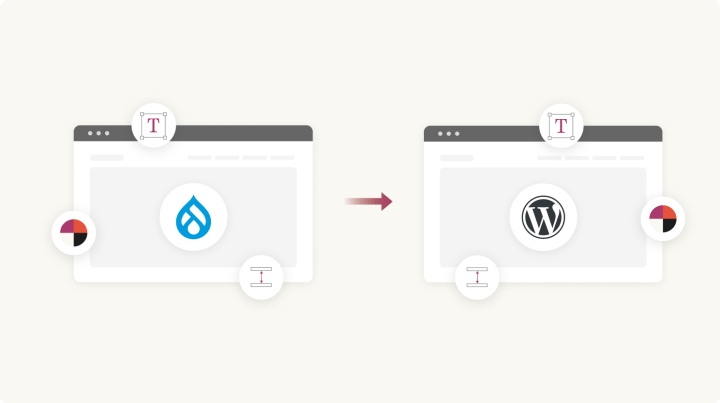
At its core, migrating the frontend of a Drupal stack to WordPress involves building a custom WordPress theme that matches or improves upon the Drupal frontend. Depending on your organization’s needs, this theme can be:
- A block-based Full Site Editing (FSE) theme for a more modular and future-proof experience.
- A theme leveraging page builders like Divi or Elementor
Before we see how you can build this, let’s see how Drupal page components map to WordPress.
Step #1: Initiate theme development with a starter theme

The first step in migrating your frontend is choosing an approach for WordPress theming. Typically, you’ll start developing your WordPress frontend with a starter theme.
At rtCamp, we use our Full Site Editing starter theme called Elementary.
Alternatively, if you’ve already decided upon using a theme like Divi or a page builder, you can go with those.
Step #2: Set up your core theme structure
Once you’ve selected the theme development approach, it’s time to set up the core theme structure:
By focusing on setting up the core theme structure first, you’re essentially building the skeleton of your website. This step serves as the foundational framework that will support all future design and functional enhancements.
It’s crucial to establish a solid structure before diving into the design integration, as it ensures the site will function smoothly and remain flexible as you fine-tune the aesthetic elements later on.
Here are a few key themes to keep in mind.
Modular layout
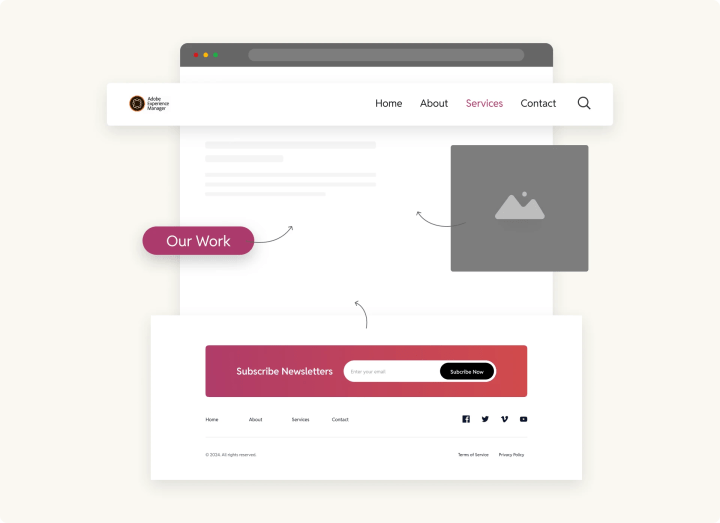
A key principle of WordPress theme development is modularity. This means creating reusable, easily maintainable components that can be integrated across the website.
For instance, you’ll create separate template parts for elements like the header (header.php), footer (footer.php), and various components within the body, such as navigation menus, sidebar widgets, and custom sections. These template parts are stored in the template-parts/ directory, allowing them to be used across multiple pages, reducing redundancy and improving maintainability.
The modular approach mirrors Drupal’s region-based layouts, which divide the page into distinct, reusable sections. It allows your theme to be more flexible and scalable as you continue developing and integrating additional features. By breaking the layout into these components, you can easily replace or adjust specific sections later on without affecting the entire structure.
Responsive design
With the core layout in place, it’s essential to ensure the website is mobile-first and fully responsive. WordPress themes should automatically adjust to different screen sizes, from desktops to tablets to smartphones. Utilizing CSS media queries ensures that your theme remains fluid and adapts to varying viewport widths.
Responsive design not only provides a better user experience across devices but also plays a role in SEO. Search engines like Google prioritize mobile-friendly sites, so ensuring your theme is responsive can have a positive impact on your search rankings.
During this phase, you will:
- Create flexible grid layouts using CSS.
- Define media queries to adjust the design based on the screen size.
- Ensure that elements like navigation menus, images, and text flow properly across devices.
Separation of functionality and design
Before design integration takes place, the core theme should separate functionality from styling. This means placing all the PHP logic, custom post types, and integrations within the theme structure while keeping the design elements within the CSS and JavaScript files. This separation allows for easier customization and more efficient updates, as you won’t need to tweak the core functionality every time you change the design.
For example, create custom page templates for specific layouts (like homepage, contact page, or service page) and define them in your theme’s root directory. These templates will provide a skeleton for the content of those pages. The next steps, like styling and adding interactive elements, will build on top of this structure, ensuring a smooth transition into design integration.
Global styling
During this phase, establish global styles for typography, colors, spacing, and UI elements. Apply CSS variables for easy customization and consistency across the site. These variables will define things like:
- Colors: Primary, secondary, and accent colors for branding.
- Typography: Font families, sizes, and line heights.
- Spacing: Margins and padding for consistent layout.
Ensure these styles are applied across all elements of the theme to create a cohesive visual identity from the start.
Step #3: Mapping Drupal components to WordPress and recreating the design blocks
An essential part of your migration is understanding how Drupal’s design capabilities map to WordPress equivalents. This mapping varies depending on whether you’re using a block-based theme. In general:
- Migrating to a block-based theme? Full Site Editing and Gutenberg provide direct equivalents for Drupal’s components, making for a smoother transition.
- Migrating to a traditional theme? Expect a more hands-on process, involving PHP templates, widgets, and possibly a page builder to replicate Drupal’s flexibility.
Understanding these differences upfront will help streamline the migration process and ensure a structured, functional WordPress site post-migration. Let’s zoom in.

Drupal Layout Builder & Panels → WordPress FSE & Gutenberg
Drupal’s Layout Builder and Panels allow users to create flexible page structures with drag-and-drop functionality. WordPress provides two different approaches to achieve the same result, depending on the type of theme:
- For block-based themes: Full Site Editing (FSE) and Gutenberg blocks offer a seamless transition, enabling users to replicate Drupal layouts using Block Templates and Template Parts. Custom dynamic content can be managed using native Gutenberg blocks or third-party block plugins like ACF Blocks.
- For traditional themes: The migration requires PHP templates and widgetized areas. While some flexibility can be achieved with get_template_part(), for true drag-and-drop capabilities, a page builder or repurposing the Gutenberg editor will be required.
Drupal Blocks → WordPress widgets and custom blocks
Drupal’s block system, which allows for placing content within defined regions, translates differently based on the WordPress theme structure:
- For block-based themes: Drupal blocks can be mapped directly to Gutenberg blocks. Custom blocks can be created with Advanced Custom Fields (ACF) or native WordPress block development.
- For traditional themes: The closest equivalent is WordPress widgets, which can be placed in designated widget areas. If Drupal blocks contain complex functionality, they may need to be rebuilt using shortcodes or PHP-based custom elements.
Drupal Regions → WordPress template parts
Drupal uses predefined regions—such as header, sidebar, and footer—to structure its layouts. In WordPress, the equivalent approach depends on the theme type:
- For block-based themes: Template parts like header.html and footer.html are managed within Full Site Editing and can be edited via the Site Editor.
- For traditional themes: These elements are defined in PHP templates (header.php, footer.php) and included using get_template_part(). Additional layout areas can be created through custom widget areas registered in functions.php.
You get the drift.
Step #4: Design integration
Once the core theme structure is in place, the next phase is to integrate the visual design and ensure the site reflects your brand. This step—design integration—bridges the gap between the bare-bones structure and your new WordPress site’s final look and feel.
By focusing on setting up the core structure first, you’ve created a solid foundation—now it’s time to apply your design vision across the site. Here’s how to approach it for both traditional and block-based themes:
Global styling integration
Ensure that all global styles (colors, typography, and spacing) are fully integrated into the theme’s components.
- Traditional themes: Global styles are typically defined in style.css, via theme customizer settings, or through a preprocessor like SASS.
- Block-based themes: Global styles are managed primarily through theme.json, which allows you to define color palettes, typography, spacing, and other design settings directly within the WordPress editor.
Styling template parts and reusable components
Now, take the modular components from the previous step (like the header, footer, and sidebars) and apply the necessary design elements:
- Traditional themes: Use header.php, footer.php, and widget areas for structural elements. Design is applied using CSS, inline styles, or the Customizer.
- Block-based themes: Header, footer, and other reusable parts are defined as block template parts (header.html, footer.html) and styled within theme.json or using block editor controls. The WordPress Site Editor allows direct customization of these elements without modifying code.
Menus and navigation
Customize the WordPress menu system to match your design, including typography, hover states, and active link styles.
- Traditional themes: Use wp_nav_menu() to register menus, styling them with CSS. Support for mega menus or dropdowns may require custom walkers or plugins.
- Block-based themes: Navigation is handled using the Navigation block, allowing drag-and-drop menu creation directly in the Site Editor. Styles and structure are managed via theme.json and block styles.
Custom widgets and sidebars
If your previous site had a complex system of widgets or sidebars, replicate that functionality while ensuring design consistency.
- Traditional themes: WordPress widgets and custom sidebars are used to manage dynamic content areas.
- Block-based themes: Instead of widgets, use block-based template parts or patterns, allowing for a more flexible and WYSIWYG-like experience.
Styling default blocks
Leverage the Gutenberg block editor to create custom blocks and block patterns, ensuring consistency across your site:
- Traditional themes: Blocks can be styled using CSS or add_theme_support() to define editor styles.
- Block-based themes: Styling is managed in theme.json, allowing for global and per-block customizations directly in the editor.
Step #5: Assembling your pages using reusable components (For both theme approaches)
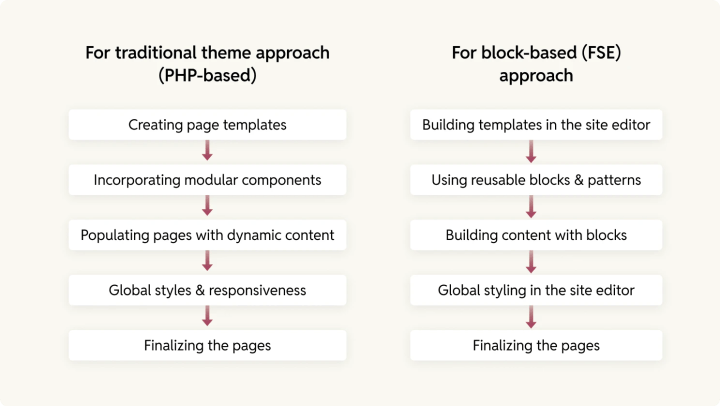
It’s time to bring everything together to build complete pages.
For traditional theme approach (PHP-based):
-
Creating page templates:
-
In a traditional theme setup, you’ll create PHP templates to define how specific pages are structured. For example, you might have:
- page-home.php for your homepage
- single.php for individual blog posts
- page-contact.php for the contact page
-
Each template will pull in various components (header, footer, sidebars) from the modular setup you’ve already created. These PHP files will be the backbone of the page structure.
-
-
Incorporating modular components:
-
Your reusable components (like headers, footers, sidebars, and custom sections) will be included within the appropriate templates. For instance:
- The header will be called in the header.php file.
- The footer will be called in the footer.php file.
- Specific sections (like CTAs or testimonials) will be inserted directly into the template or referenced as partials.
-
-
Populating pages with dynamic content:
- You will use WordPress functions like the_content(), the_title(), and get_template_part() to populate your pages with content dynamically.
- For blog or portfolio pages, utilize WordPress loops like have_posts() to query and display dynamic content.
-
Global styles & responsiveness:
- Apply global styles through CSS or SCSS files, ensuring a mobile-first design that looks consistent across devices. You can use CSS Grid or Flexbox for layout, adapting it for various screen sizes using media queries.
- This stage is where you’ll ensure that the design adapts properly across multiple screen sizes (desktop, tablet, mobile).
-
Finalizing the pages:
- Once templates and components are in place, go into the WordPress admin and assign your page templates to the specific pages. Adjust dynamic content where needed (like blog posts, custom post types, etc.) to ensure everything displays correctly.
For block-based (FSE) approach:
-
Building templates in the site editor:
- In an FSE setup, you’ll use the Site Editor (or Full Site Editing) to build templates directly using blocks. This is a more visual and modular approach than a traditional theme, and it integrates with the WordPress block editor seamlessly.
- Create templates directly in the Site Editor, such as a Homepage template, a Single Post template, or even a 404 page template.
- These templates use block patterns and reusable blocks to define the layout and structure. You can add header, footer, and other reusable blocks to these templates.
-
Using reusable blocks & patterns:
- Create Reusable Blocks for common elements like navigation menus, featured content sections, or testimonials. These can then be inserted into any page or template without redoing the layout each time.
- You can create block patterns for entire sections of content (like hero banners, testimonial grids, or pricing tables), which will then be reusable across your site.
- By making use of reusable components like these, your theme is more flexible and can be updated quickly across all pages with just a small change.
-
Building content with blocks:
- Assemble content by adding various Gutenberg blocks in the Site Editor. For example, use Cover Block for banners, Columns Block for multi-column layouts, and Group Block to structure sections.
- For dynamic content, use Query Loop Block to pull in blog posts, products, or other content types, and customize it based on your design (i.e., showing excerpts, images, and meta information).
-
Global styling in the site editor:
- Adjust global styling directly in the Site Editor. Use the Global Styles panel to customize typography, colors, and spacing site-wide. This ensures consistency across pages and elements.
- You can also use theme.json to set default styles and custom properties for colors, typography, and layout, which helps streamline customization and maintenance.
-
Finalizing the pages:
- Once you’ve created the templates and added the content, preview the pages and check that everything is working as intended.
- Since FSE themes allow for visual building, you can quickly make adjustments to individual elements and layouts through the Site Editor interface, without having to touch code directly.
- Publish your templates and assign them to the specific pages in WordPress. Your dynamic content should now automatically populate based on the templates you’ve defined.
Wrapping it up…
Migrating a Drupal site frontend to WordPress involves careful planning and a clear approach to theme development. Whether you opt for a custom-built, block-based, or page builder-driven theme, the key is to ensure a seamless transition by mapping Drupal components to their WordPress counterparts.
Planning the migration
PREVIOUS
Credits

Disha Sharma
Author
Disha Sharma
Author
Disha Sharma is a Content Writer at rtCamp with over a decade of experience at the intersection of technology, digital marketing, and enterprise content strategy. Her WordPress roots run deep, her …

Aviral Mittal
Editor
Aviral Mittal
Editor
Aviral Mittal is the Chief Marketing Officer at rtCamp, where he established and leads the marketing function, building and growing a team of 20+ specialists across content, SEO, design, and growth…
Contributions and Updates: Usama 

Good Work. Good People.
Industry partnerships


Compliance certifications


 United States India
© rtCamp Inc. since 2009. All rights reserved.
Terms of Service · Privacy Policy · Trust Center
Company
Solutions
Subscribe to our newsletter and get a few email updates every month.
United States India
© rtCamp Inc. since 2009. All rights reserved.
Terms of Service · Privacy Policy · Trust Center
Cookie Consent
We value your privacy
We use cookies to give you the best possible experience. By clicking “Accept,” you consent to our use of cookies to improve site functionality, analyze usage, and personalize content and communications. Your privacy matters to us, and we are committed to handling your data responsibly and transparently. Please check our Privacy Policy for more details.
Manage PreferencesDon’t AllowAllow All
Why do we use cookies?
×
By clicking "Accept" or "Decline All" at the bottom, you consent to the use of cookies and other tools as described in our Cookie Policy in accordance with your settings and accept our Terms of Service.
Toggle EssentialEssential
Essential cookies enable basic functions and are necessary for the proper function of the website.
Name
Description
Duration
Geolocation Config
This cookie is used to store the consent settings based on the visitor's location.
30 days
Cookie Preferences
This cookie is used to store the user's cookie consent preferences.
30 days
Toggle CloudFlareCloudFlare
CloudFlare provides web performance and security solutions, enhancing site speed and protecting against threats.
Service URL: developers.cloudflare.com (opens in a new window)
Name
Description
Duration
cf_clearance
Whether a CAPTCHA or Javascript challenge has been solved.
session
Toggle CommentsComments
These cookies are needed for adding comments on this website.
Name
Description
Duration
comment_author
Used to track the user across multiple sessions.
Session
comment_author_email
Used to track the user across multiple sessions.
Session
comment_author_url
Used to track the user across multiple sessions.
Session
Toggle GodamGodam
GoDAM" is primarily a specialized WordPress plugin and media management service designed to enhance video hosting, marketing, and asset management directly within the WordPress dashboard.
Service URL: godam.io (opens in a new window)
Name
Description
Duration
user_image
Temporarily stores the path to the user's avatar or profile picture for quick rendering in the website header.
session
user_id
Stores the numerical ID of the logged-in user to maintain session continuity and basic site operations.
session
full_name
Stores the logged-in user's display name to personalize the site interface without needing database queries.
session
system_user
First-party cookie used to store basic application state identifying the current system user role.
session
sid
A generic session ID cookie used to maintain user state and functionality as the visitor navigates through the site.
session
Toggle Google reCAPTCHAGoogle reCAPTCHA
Google reCAPTCHA helps protect websites from spam and abuse by verifying user interactions through challenges.
Name
Description
Duration
_GRECAPTCHA
Google reCAPTCHA sets a necessary cookie (_GRECAPTCHA) when executed for the purpose of providing its risk analysis.
179 days
Toggle Google Tag ManagerGoogle Tag Manager
Google Tag Manager simplifies the management of marketing tags on your website without code changes.
Name
Description
Duration
cookiePreferences
Registers cookie preferences of a user
2 years
td
Registers statistical data on users' behaviour on the website. Used for internal analytics by the website operator.
session
Toggle StatisticsStatistics
Statistics cookies collect information anonymously. This information helps us understand how visitors use our website.
Toggle Factors AIFactors AI
Factors.ai is a B2B account intelligence and marketing analytics platform that helps Go-To-Market (GTM) teams identify anonymous website visitors, track buyer journeys, and measure the ROI of marketing campaigns.
Service URL: www.factors.ai (opens in a new window)
Name
Description
Duration
_fuid
It is sent to capture session details and track user behavior across your website to provide behavioral data and intent signals.
1 Year
Toggle Google AnalyticsGoogle Analytics
Google Analytics is a powerful tool that tracks and analyzes website traffic for informed marketing decisions.
Service URL: policies.google.com (opens in a new window)
Name
Description
Duration
FPGSID
Stores a session or user identifier to track how visitors interact with a website. This helps Google Analytics measure website performance, user engagement, and usage patterns.
Session
FPLC
Used by Google Analytics to link visitor interactions and sessions across multiple related domains.
20 hours
FPID
A server-side Google Analytics cookie used as an alternative user identifier when third-party cookies are restricted.
2 years
_ga
ID used to identify users
2 years
_ga_
ID used to identify users
2 years
Toggle Jetpack StatsJetpack Stats
Jetpack's built-in visitor analytics. It records page views, referring sites, search terms, and outbound link clicks, and also carries the shared visitor-tracking library used by Jetpack Instant Search and WooCommerce Analytics.
Service URL: automattic.com (opens in a new window)
Name
Description
Duration
tk_aip
Stores a list of anonymous visitor IDs so they can be merged into one identity once a visitor is recognized.
Up to 5 years
tk_tc
Used once per page load to work out which cookie domain the Tracks library should use, then removed as soon as it's read back.
Session (deleted immediately after use)
tk_qs
Queues analytics events for Jetpack's Tracks library so none are lost if the page closes before they can be sent.
30 minutes
tk_ai
Stores a randomly-generated anonymous visitor ID so Jetpack's Tracks analytics library can link tracking events to the same visitor.
Session in wp-admin; up to 5 years on the frontend
Toggle Microsoft ClarityMicrosoft Clarity
Clarity is a web analytics service that tracks and reports website traffic.
Service URL: clarity.microsoft.com (opens in a new window)
Name
Description
Duration
CLID
Identifies the first-time Clarity saw this user on any site using Clarity.
12 months
ANONCHK
Indicates whether MUID is transferred to ANID, a cookie used for advertising. Clarity doesn't use ANID and so this is always set to 0.
Session
_clck
Persists the Clarity User ID and preferences, unique to that site is attributed to the same user ID.
12 months
_clsk
Connects multiple page views by a user into a single Clarity session recording.
12 months
Toggle Parse.lyParse.ly
Parse.ly is a content analytics platform that helps publishers optimize audience engagement and content performance.
Name
Description
Duration
cookies.js_dtest
This cookie determines whether the browser accepts cookies.
session
_parsely_session
JSON document storing information identifying a browsing session according to Parsely’s proprietary definition
30 minutes
_parsely_visitor
JSON document uniquely identifying a browser and counting its sessions
13 months
Toggle SalespanelSalespanel
Salespanel is a B2B marketing and sales software that identifies, tracks, and qualifies website visitors and leads in real-time using first-party data. It helps businesses monitor customer journeys, score leads based on behavior, and syncs this data with CRMs (like Pipedrive or HubSpot) to improve conversion rates.
Service URL: salespanel.io (opens in a new window)
Name
Description
Duration
track_uid
Identify and tracking a lead
12 moths
Toggle MarketingMarketing
Marketing cookies are used to follow visitors to websites. The intention is to show ads that are relevant and engaging to the individual user.
Toggle Bing / MicrosoftBing / Microsoft
Bing, powered by Microsoft, is a search engine providing web, image, video, and map search capabilities.
Name
Description
Duration
MR
Used to collect information for analytics purposes.
6 months
ANONCHK
Used to store session ID for a users session to ensure that clicks from adverts on the Bing search engine are verified for reporting purposes and for personalisation
10 minutes
SM
Used by Microsoft in synchronizing the MUID across multiple Microsoft domains to track users for advertising.
session
MUID
Identifies unique web browsers visiting Microsoft sites. These cookies are used for advertising, site analytics, and other operational purposes.
1 year
Toggle DoubleClick/Google MarketingDoubleClick/Google Marketing
A comprehensive digital advertising platform for managing campaigns, optimizing performance, and analyzing audience data.
Name
Description
Duration
IDE
This cookie is used for targeting, analyzing and optimisation of ad campaigns in DoubleClick/Google Marketing Suite
2 years
ar_debug
Store and track conversions
Persistent
Toggle LinkedInLinkedIn
LinkedIn is a professional networking platform for job seekers, employers, and industry connections.
Name
Description
Duration
bscookie
Used by LinkedIn to track the use of embedded services.
1 year
AnalyticsSyncHistory
Used to store information about the time a sync with the lms_analytics cookie took place for users in the Designated Countries
30 days
bcookie
Used by LinkedIn to track the use of embedded services.
1 year
li_sugr
Used to make a probabilistic match of a user's identity outside the Designated Countries
90 days
lidc
Used by the social networking service, LinkedIn, for tracking the use of embedded services.
1 day
UserMatchHistory
Used by LinkedIn Ads to synchronize and match user IDs across different ad networks and data providers.
30 days
Toggle LinkedIn InsightLinkedIn Insight
LinkedIn Insight is a web analytics service that tracks and reports website traffic.
Service URL: www.linkedin.com (opens in a new window)
Name
Description
Duration
li_sugr
Used to make a probabilistic match of a user's identity.
90 days
lidc
Used for routing and session management.
24 hours
Toggle LiveIntentLiveIntent
LiveIntent provides a platform for email advertising and identity-driven marketing solutions.
Name
Description
Duration
_lc2_fpi_js
Companion cookie to _lc2_fpi used by JavaScript to facilitate cross-domain ad tracking and user identification.
1 year
_lc2_fpi
First-party tracking cookie usually associated with LiveRamp to identify users across devices for targeted advertising.
1 Year
_li_ss
Sets a unique ID for the visitor, that allows third party advertisers to target the visitor with relevant advertisement. This pairing service is provided by third party advertisement hubs, which facilitates real-time bidding for advertisers.
1 month
lidid
Collects data on visitors' behaviour and interaction - This is used to make advertisement on the website more relevant. The cookie also allows the website to detect any referrals from other websites.
2 years
Toggle Cookie PolicyCookie Policy
You can find more information in our Privacy Policy.
Allow AllDecline All
Accept